Kalzit is in early development. These pages describe what exists today and change as the milestones progress. Screenshots show the development version with demo data.
Administration
Organizations, members, teams, roles, the audit log, server settings and updates. Sections appear only to those who may open them. The interfaces behind them are described in the API docs for access, settings and dashboards and updates.
Administration in the Organization group lists the sections, split into Organization (for the organization you work in) and Server (for server admins). Members also has its own entry in the sidebar.
Your account
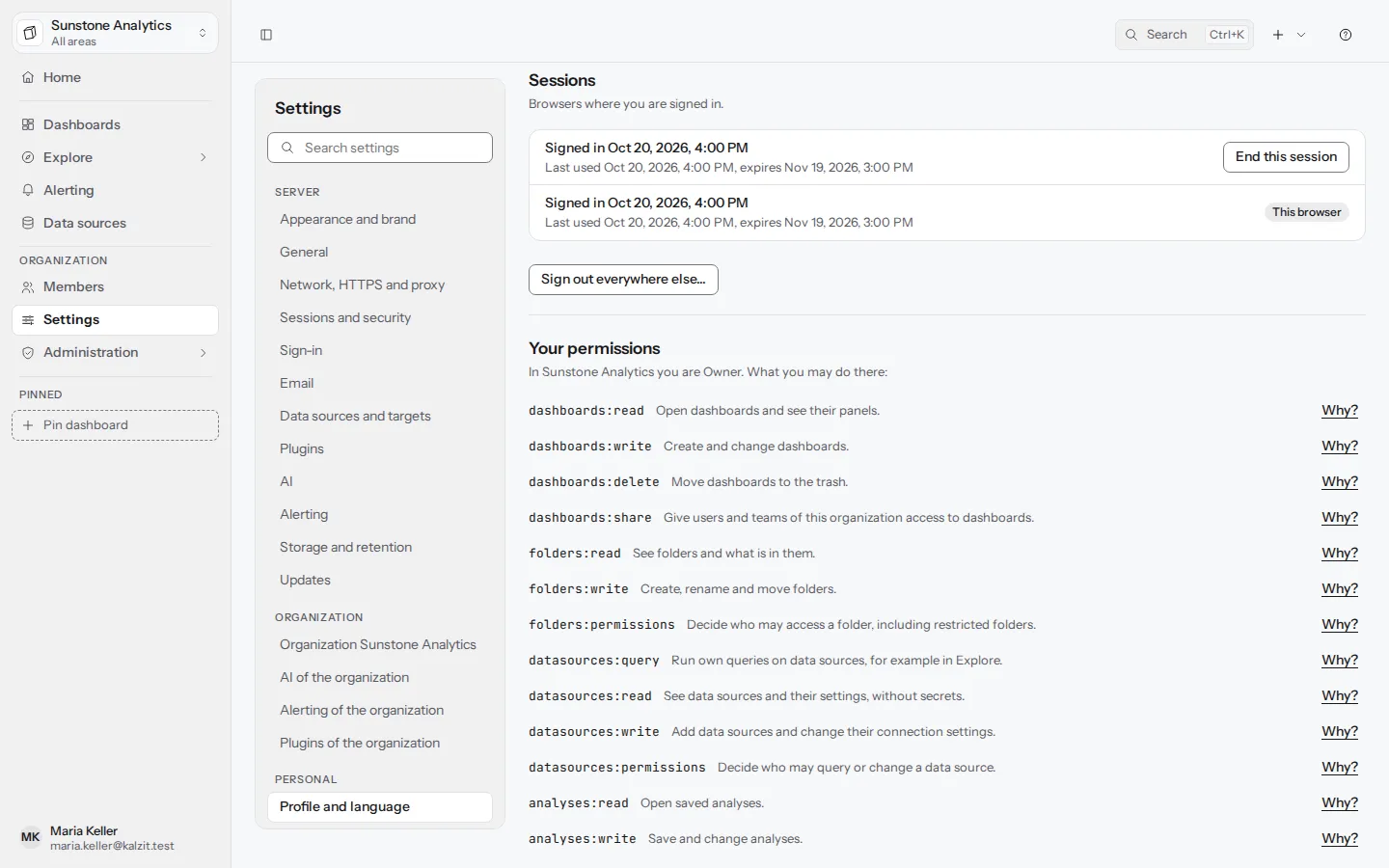
Open your name at the bottom of the sidebar, then your account (Your account):
- Profile: your name; the email address is changed by a server admin.
- Password: Current password, New password, Repeat new password. Changing it signs you out everywhere else.
- Sessions: browsers where you are signed in, End this session and Sign out everywhere else….
- Your permissions: what your role allows in the current organization.
- Your teams: the teams you belong to in the current organization, with your role in each (member or maintainer). Read-only; admins and maintainers manage teams.
- Preferences: Language, Theme (System, Light, Dark, High contrast), Time zone (all times in Kalzit follow it), Start dashboard, First day of the week. They apply at once, can be undone, and follow you to every browser.
Organizations
A server can hold several organizations. Server admins create and rename them under Administration > Organizations (New organization…, with a first owner who manages it). Server admins are not members of every organization. The organization card at the top of the sidebar switches between the organizations you belong to (server admins see all).
Members
Members lists the people of the organization and their roles.
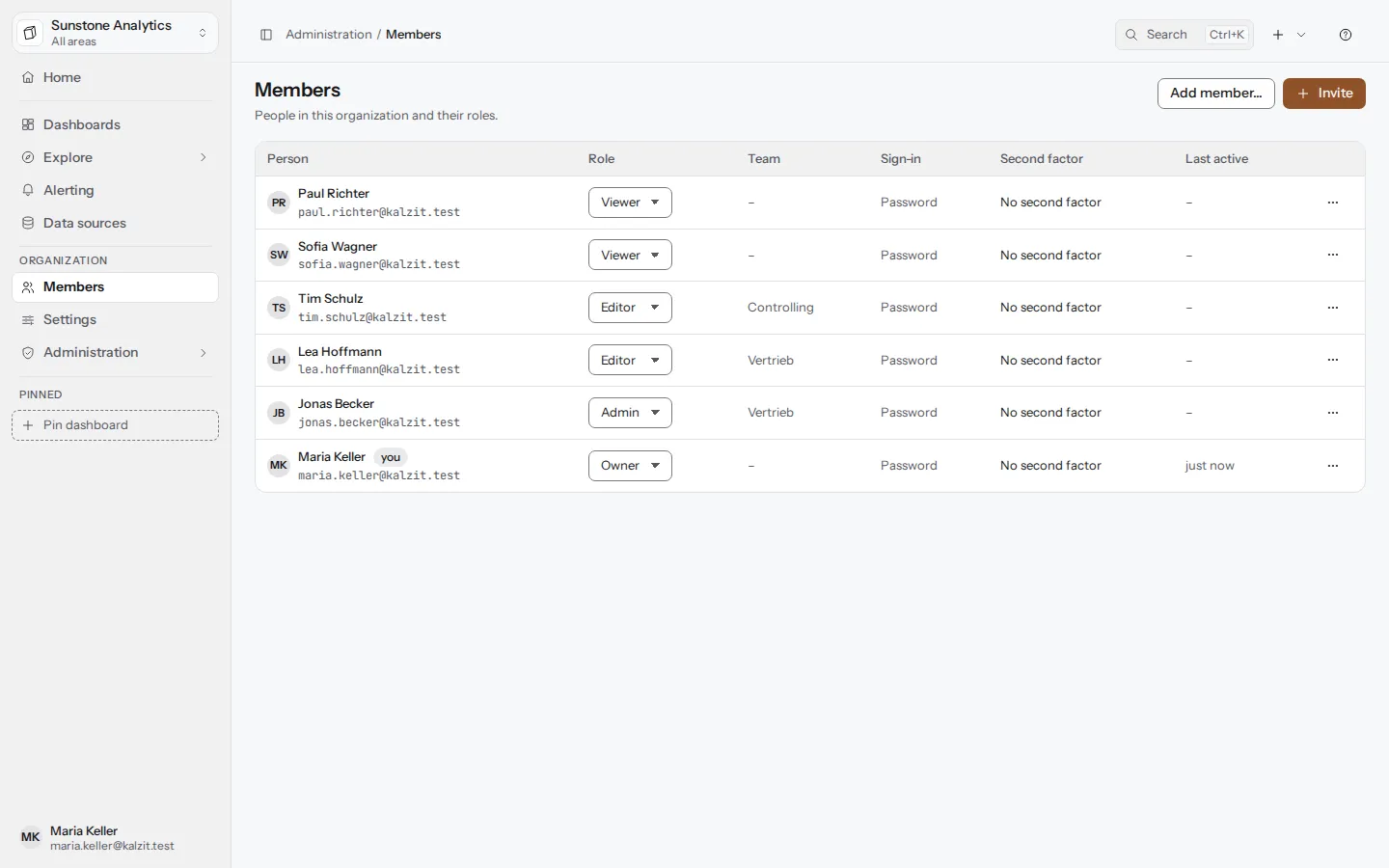
- Add member… adds an existing account by email address and role. The person needs an account on this server; a server admin creates accounts under Users.
- Change a role in the list; Remove… takes a member out of the organization (their account stays and they lose access at once).
- An organization always keeps at least one owner. You can only give a role, change or remove a member whose permissions you hold yourself.
Teams
Teams are groups of members that receive roles and access together.
- New team…, rename and delete. A team member is a Member or a Maintainer (who can add and remove members of that team).
- Roles of the team: every member gets the permissions of these roles on top of their own (at most 20; never the owner role).
- Teams can be given access to folders, dashboards and data sources like individual users.
Roles and permissions
Roles are sets of permissions. The built-in roles cannot be changed:
| Role | Can |
|---|---|
| Viewer | Open dashboards and folders and see their data through the stored queries; see teams |
| Editor | Everything a viewer can, plus create, change, delete and share dashboards, manage folders, run own queries in Explore and read data sources, save analyses, export data, annotate, see members |
| Admin | Everything except deleting the organization |
| Owner | Everything |
Custom roles (New role) combine permissions as you need them, grouped as Dashboards and folders, Data sources and analyses, People and roles, Organization and Other. Examples of permissions: dashboards:read, dashboards:write, dashboards:share, folders:permissions, datasources:query, datasources:write, data:export, annotations:write, audit:read, settings:write. You can only give permissions you hold yourself, and the owner-only permissions cannot be part of a custom role. A role that is still given to members cannot be deleted.
Beyond roles, Access… on a folder, dashboard or data source gives users, teams or roles Can view / Can edit / Can manage (data sources: Can query / Can edit / Can manage). A folder marked Restricted hides itself and everything in it from everyone without access; the nearest restricted folder above a resource decides. For everyone else it does not exist (“not found”).
Every request is checked on the server for every resource.
Audit log
Audit log answers who changed what and when in the organization: sign-ins, changes to dashboards, folders, data sources, members, roles, settings, exports and more. Filter by Person, Action or area and a date range; page with Newer and Older. Events about restricted folders you cannot see are left out. Events are deleted after the retention time (365 days by default, setting audit.retention_days). Server admins also have a server-wide audit log under Server.
Export… under the list saves every event that matches the filters, not only the page you see, as CSV (for Excel and other spreadsheets, with German or English separators) or JSON. Times are in UTC; text that a spreadsheet would read as a formula gets a leading '. Exporting needs the same right as reading the log, and each export is recorded in the log itself (Audit log exported). One file holds at most 100,000 events; for more, choose a shorter date range or a filter.
Users (server admins)
Administration > Users lists every account on the server: create users, rename, set a password, make a user a server admin, Lock and unlock (a locked user is signed out and cannot sign in). The last server admin and the last owner who can sign in are protected.
Settings
Settings in the sidebar holds one page of sections, for the Server, your Organization and Personal, with a Search settings box that finds a setting by its German or English name, description or key and jumps to it; every section and setting has its own address.
- Changes apply at once and can be undone.
- Values from
kalzit.tomlor the environment show as locked with their source. Network, TLS, proxy, session, security and log settings are read-only here: they are set inkalzit.tomlor the environment only, so a wrong value can never lock you out. - Sections: Appearance and brand, General, Network, HTTPS and proxy, Sessions and security, Sign-in (OpenID Connect, SAML, LDAP, second factor), Email, Data sources and targets, Plugins, AI, Storage and retention, Updates, This organization, Profile and language, Keyboard shortcuts, and Export / import settings.
Appearance and brand
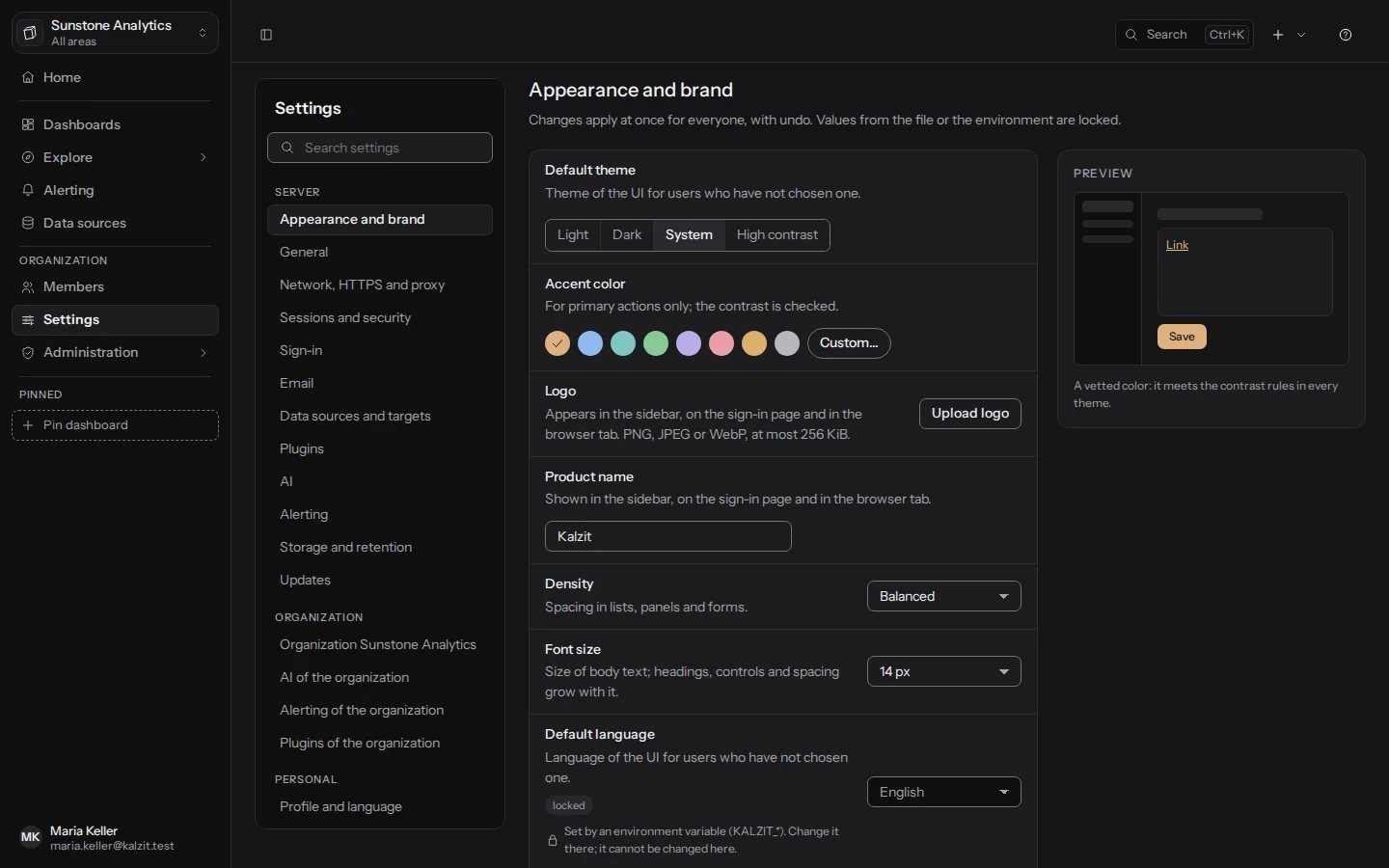
Through checked options, never custom CSS: Default theme, Accent color (eight checked colors, or Custom… as #rrggbb when its contrast is high enough: 3:1 against the light and the dark page and 4.5:1 for the label), Product name, Logo (PNG, JPEG or WebP, at most 256 KiB; in the sidebar, on the sign-in page and as the browser tab icon; upload, replace and remove can be undone), density (Compact, Balanced, Comfortable), font size, start page, time zone and first day of the week, with a live preview. An organization can set its own accent, density, font size, start page, time zone and week start or follow the server (Like the server).
The Sign-in page can show your own Welcome text (up to 280 characters) and a Notice (up to 2000), with bold, italic and links.
Export and import settings
Export / import settings downloads the server’s settings, or those of one organization, as a JSON file; only settings you may change are exported and never secrets. Import shows every change (“Will change”, “Unchanged”, “Locked”, “Refused”, “Unknown here”) before anything is applied, applies all of them together and can be undone.
Outbound proxy
Under Network, HTTPS and proxy, Outbound proxy sends Kalzit’s own requests to the internet through an HTTP or HTTPS proxy: the plugin catalog, update checks and downloads, Let’s Encrypt (ACME) and the AI providers. Without proxy lists hosts, domains, addresses and networks reached directly. A Proxy user name and Proxy password are optional; the password is stored encrypted and never shown again. Data sources never use this proxy. Kalzit checks every target itself before the request goes to the proxy, but the proxy must still refuse private, loopback, link-local and cloud metadata addresses on its own. Details: Outbound proxy in the repository.
Data and retention settings
Under Data sources and targets: the allowed folders for SQLite and file sources, an optional list of allowed targets, the query time limit (30 s) and the row limit (100,000). Under Storage and retention: the audit log retention and how many dashboard versions are kept (100; 0 keeps every version). Settings can also come from KALZIT_SETTING_<KEY> variables; every key is listed in the settings reference of the API docs.
Updates
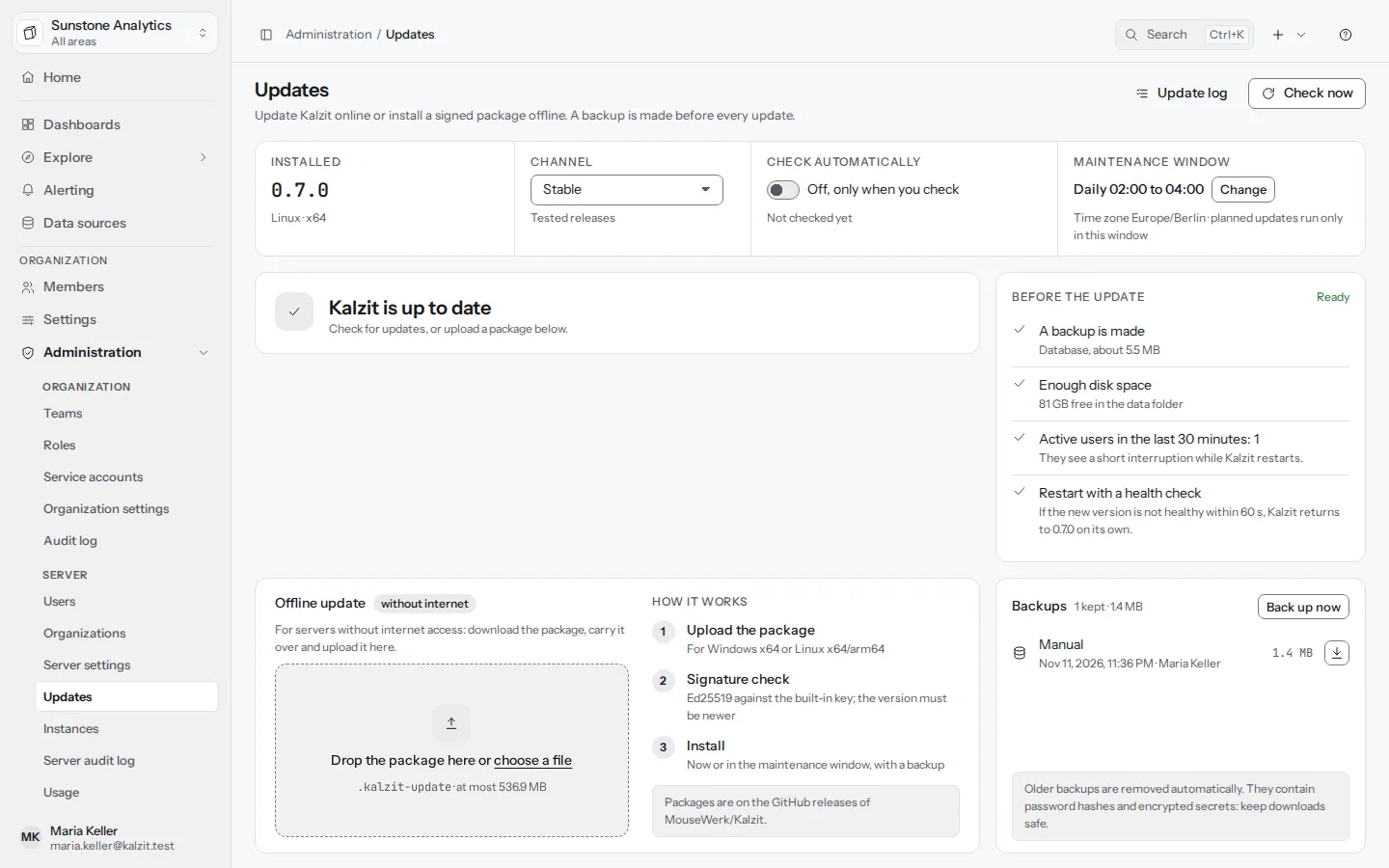
Administration > Updates (server admins). Kalzit installs only releases signed with its built-in key; an older version, a changed file or a package for another platform is refused. The full operator guide, including the release key, command line and recovery, is docs/operations/updates.md.
Online
- Check now (or Check automatically, daily, off by default; Channel Stable or Preview). A new version shows with its release notes, size and verified signature.
- Download, then Install now, or plan it: Plan for today… or Plan for tomorrow… starts in the Maintenance window (02:00 to 04:00 unless you change it).
- Kalzit backs up its database, replaces itself, restarts and checks that it is healthy. If it is not healthy within the timeout (60 s by default), it returns to the previous version and database on its own.
Online installation is automatic on Linux under systemd (when the service account may replace the binary). Elsewhere, such as Windows, Kalzit downloads and verifies the release and shows the command to run with Kalzit stopped (kalzit update apply); the next start checks itself and returns on its own when it is not healthy. In a container, update the image.
Offline
For servers without internet access: download the .kalzit-update package from the GitHub release of MouseWerk/Kalzit, carry it over and drop it on the Updates page. It is verified (Ed25519 against the built-in key, the version must be newer) and then installed like an online update.
Backups and rollback
- Before the update shows what is ready: a backup of the database (with its size), free disk space, and the number of active users who will see a short interruption. With PostgreSQL as Kalzit’s own database, Kalzit makes no backup: use
pg_dumpand confirm it. - Backups lists them, Back up now adds a manual one, each can be downloaded (the download is audited). Backups contain password hashes and encrypted secrets: keep downloads safe. Older backups are removed automatically.
- History lists every update with who started it, how long it took and how it ended (Succeeded, Returned, Stopped, nothing changed). Return to this version puts back a kept earlier version; if the database schema changed since, the backup taken when that version was left replaces the database and later changes are lost, which Kalzit asks about first. From the command line,
kalzit update rollback <version>with Kalzit stopped. - Back up the secrets key along with the database; see the backups section of the architecture notes.
Warning. Backups contain password hashes and encrypted secrets. Store downloaded backups where only administrators can read them.