Kalzit is in early development. These pages describe what exists today and change as the milestones progress. Screenshots show the development version with demo data.
Getting started
This page takes you from a fresh server to a first query on a dashboard. Installing and starting the server is described in the Kalzit README. The server side of the first start is in First start. An operator also finds backups and services in the architecture notes.
First setup
On the first start Kalzit asks for a one-time Setup code.
- Open the server’s address, by default
http://localhost:3000. - Read the code from the file
setup-token.txtin the data folder (or use the value ofKALZIT_SETUP_TOKEN, if one is set).
The page has three steps:
- Confirm this server: enter the Setup code.
- Name the organization: the Organization name. More organizations can be added later.
- Create the owner account: your name, email address and a password of at least the shown length. A strength hint appears while you type.
Press Set up. You are the owner of the first organization.
If Kalzit is already set up, the page says so and links to sign-in.
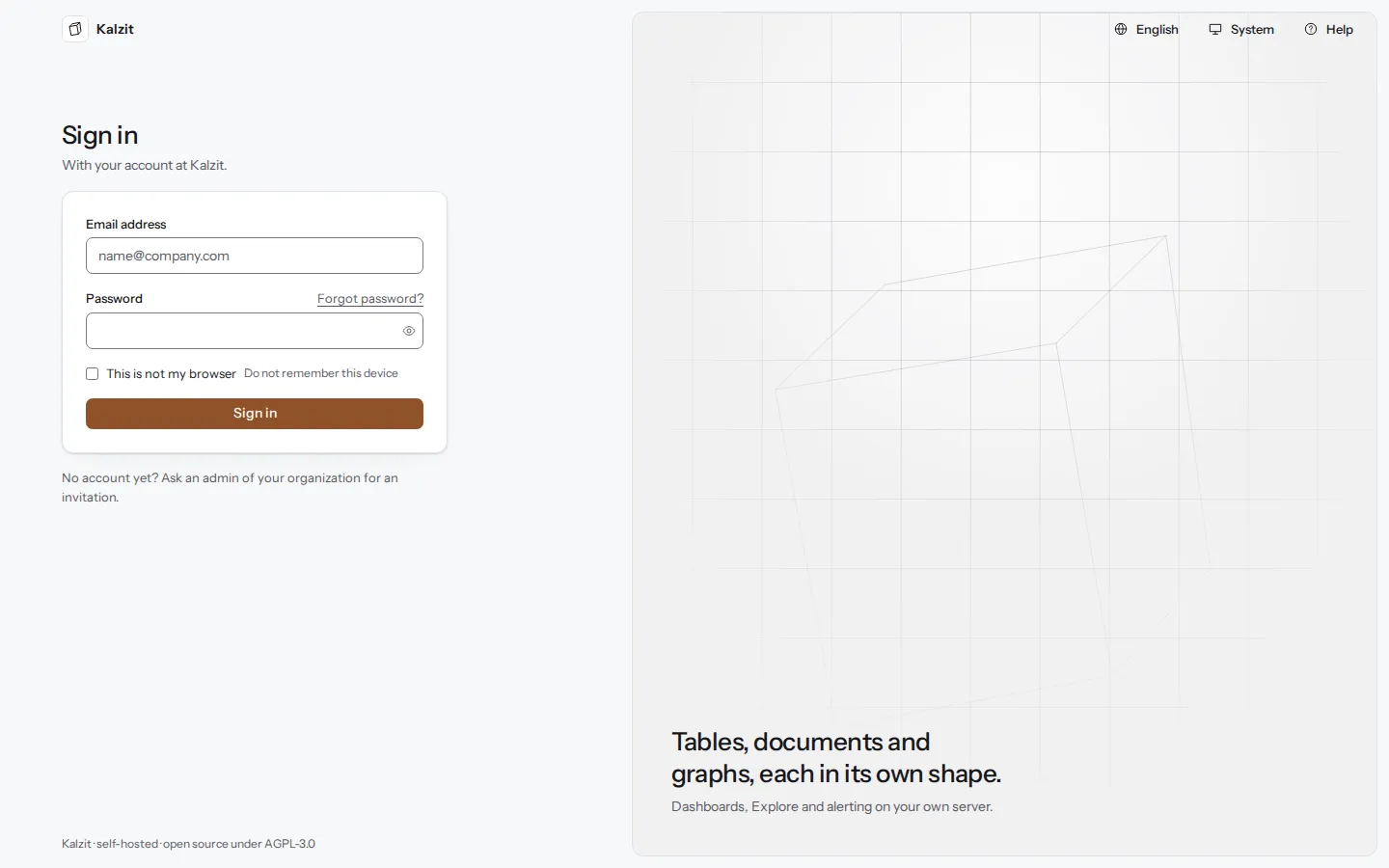
Sign in
Enter the Email address and Password of your account and press Sign in. The password field can show what you typed and warns when Caps Lock is on. After too many failed sign-ins you have to wait a few minutes. When an administrator has set up single sign-on, the page also offers a button to sign in through your provider (OpenID Connect or SAML); with LDAP or Active Directory you sign in with your directory name and password in the same form. If your account has a second factor, Kalzit asks for a passkey, a code from your authenticator app or a recovery code next.
A language or theme you choose on the sign-in page becomes your preference when you sign in, unless you already have one.
Your first data source
A data source is a connection to a database or service. Only admins and owners add them.
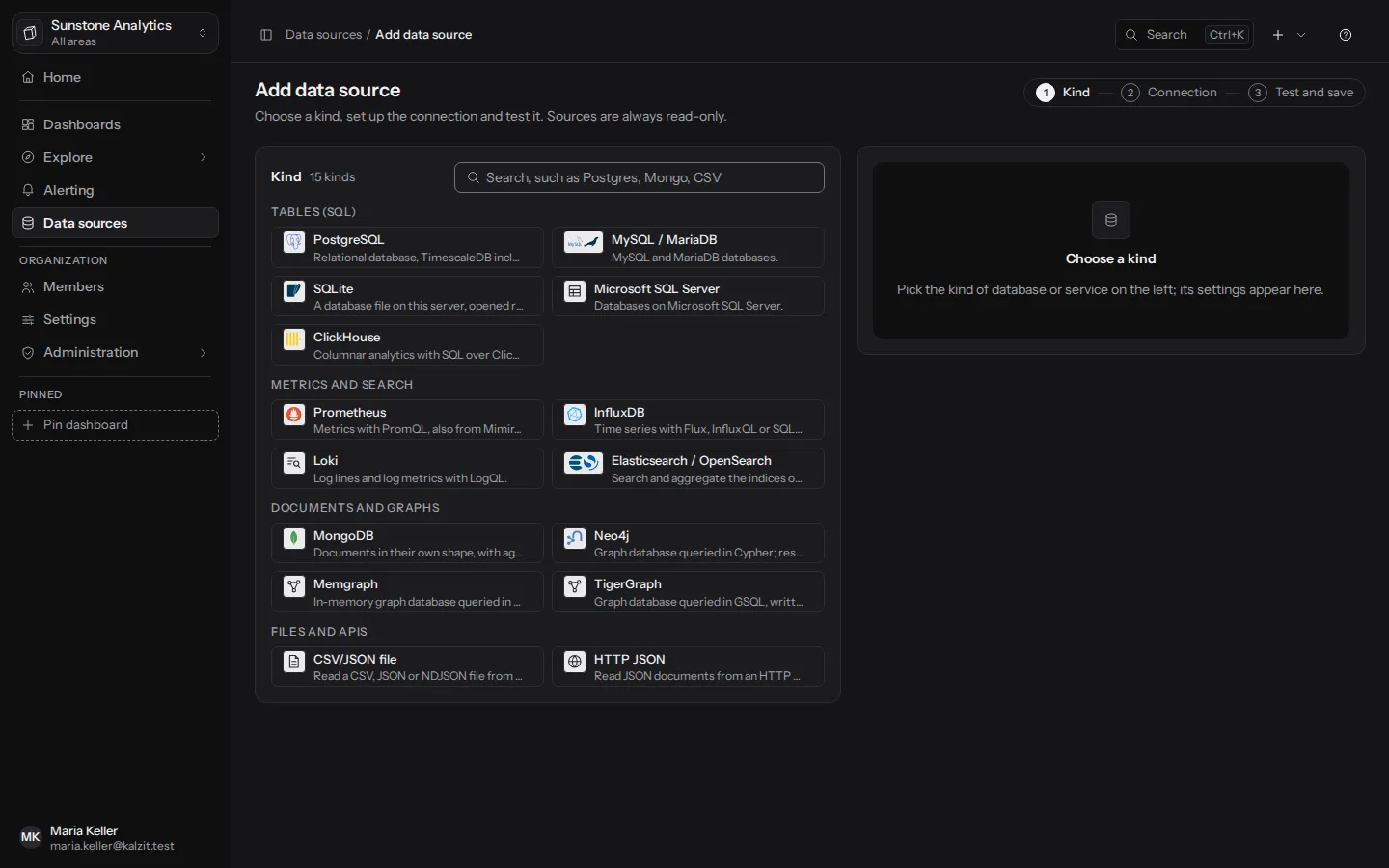
- Open Data sources and press Add data source.
- Pick the kind (for example PostgreSQL) from the cards, grouped as Tables (SQL), Metrics and search, Documents and graphs, Files and APIs. The search box finds a kind by name.
- Enter the connection, either as fields or as a connection string, and a name.
- Press Save and test. Kalzit stores the source and checks the connection with what you entered.
Use a database login that can only read. See Data sources for every kind and what the check does.
Your first query in Explore
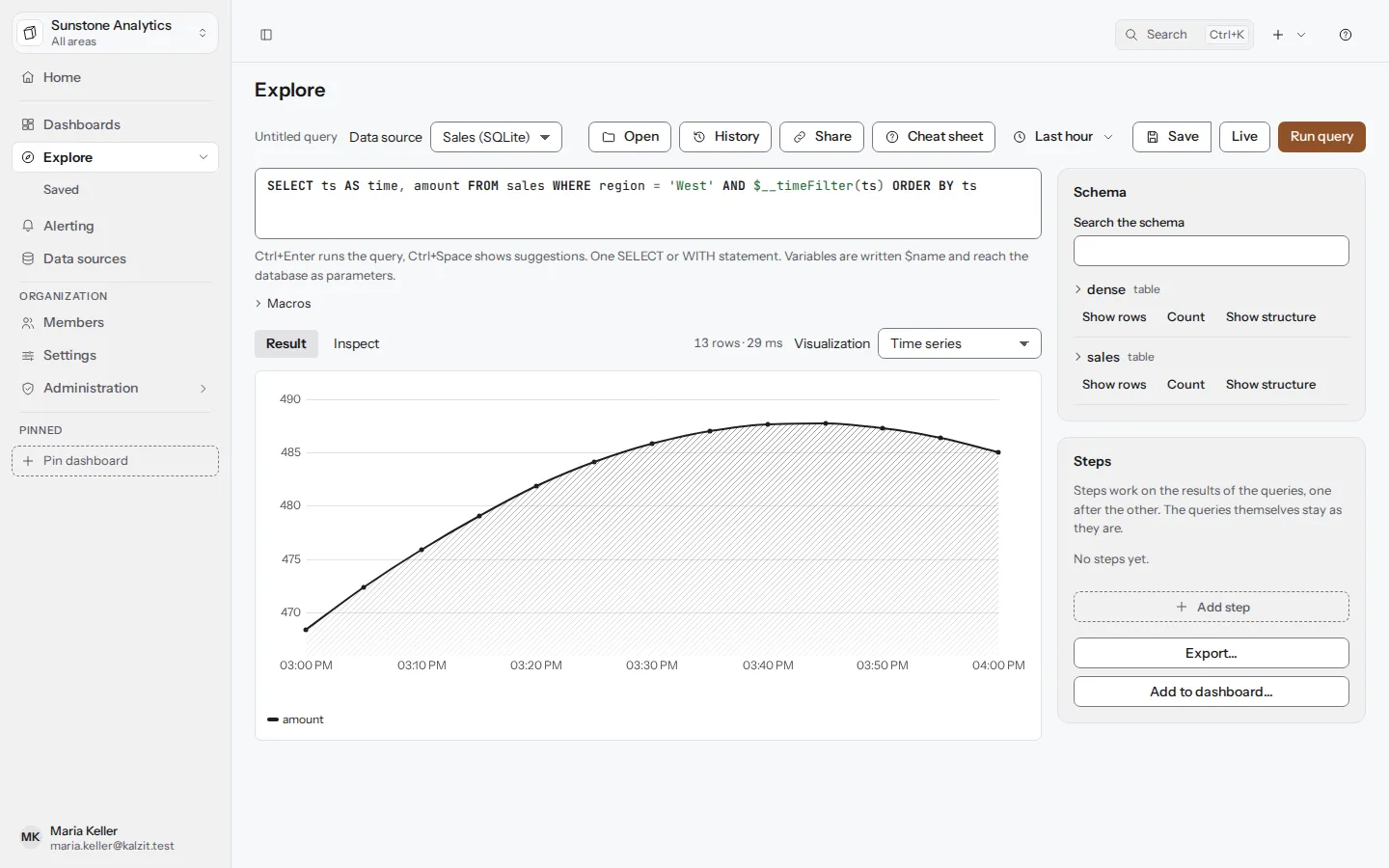
- Open Explore, pick the data source and write a query, for example a
SELECTon a SQL source. - Press Run query or Ctrl+Enter.
- The result appears in a visualization that fits its shape (a table, a time series, documents or a graph). The Inspect tab shows the executed query and the server’s notes.
Details: Explore.
Your first dashboard
The quickest way: in Explore press Add to dashboard…, choose A new dashboard and press Add panel. The dashboard opens with the panel.
Or start from the dashboard list: Dashboards, New dashboard, a title, Create. Then Edit, Add and pick a visualization. In the panel editor choose the data source, write the query and press Apply, then Save… to keep the dashboard as a new version.
Details: Dashboards and Panels.
First steps card
Until you have done the basics, the sidebar shows a First steps card: Add a data source, Create a dashboard, Invite a colleague. It ticks off what is done and can be hidden.
Next
- Invite colleagues: Administration.
- Make the numbers meaningful: calculated fields and statistics.
- Learn the keys: press
?anywhere.