Kalzit is in early development. These pages describe what exists today and change as the milestones progress. Screenshots show the development version with demo data.
AI
Kalzit can explain a query, draft one from a description, summarize a result and answer questions about your data (Ask, Fragen) with a language model of your choice: a model in your own network (Ollama, LiteLLM, vLLM, LM Studio or another OpenAI-compatible server) or a cloud provider (OpenAI, Anthropic). AI is off until a server administrator connects a provider and turns it on; until then no AI button, menu entry or hint appears anywhere. API: AI.
AI always works with the rights of the person asking and only reads. It sees a data source’s schema and results only when the source was opened to AI, and every call is in the audit log, without the question, the answer or any result.
Turning AI on
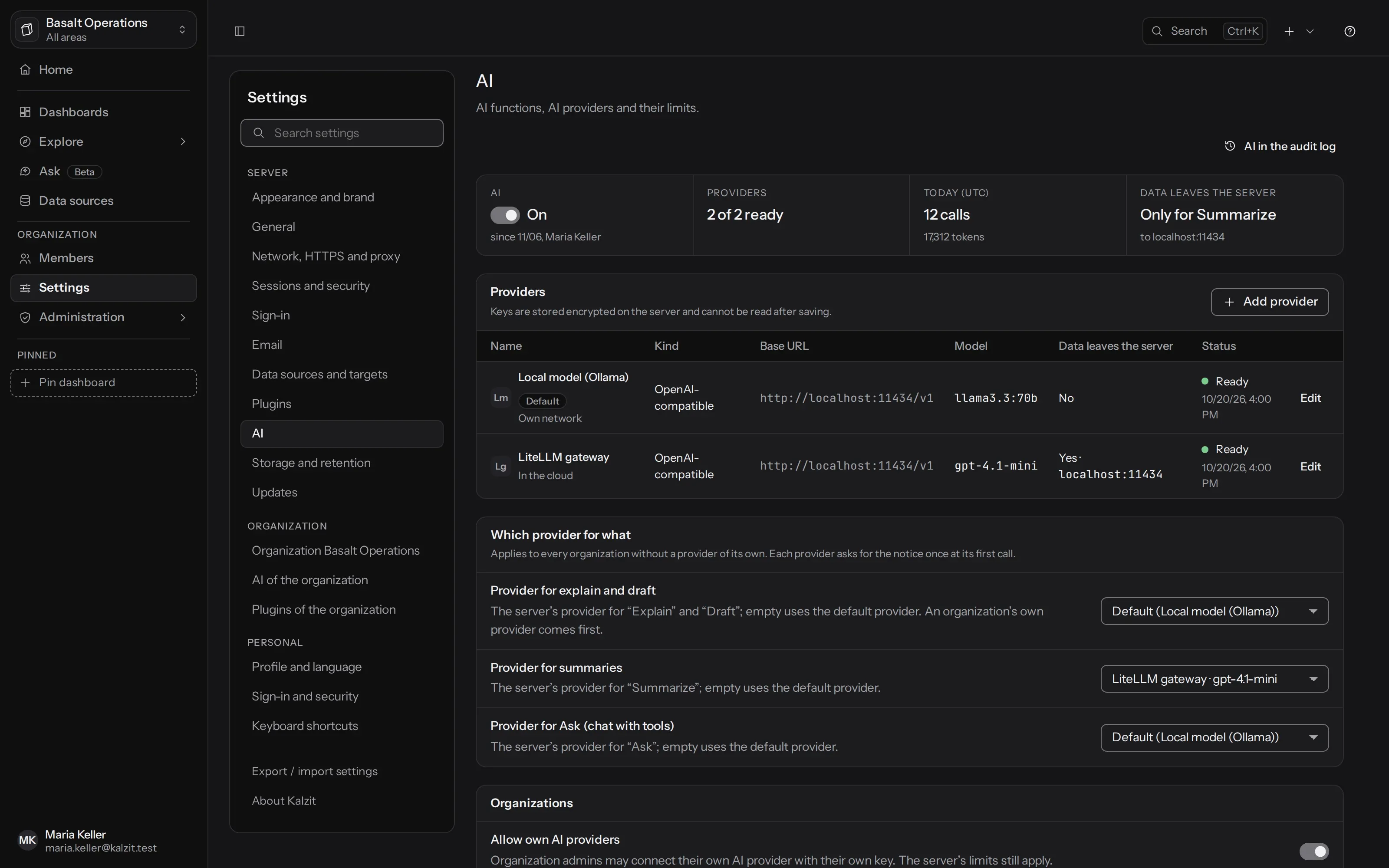
Settings > AI (Einstellungen > KI), for server administrators:
- Add provider (Anbieter hinzufügen): the kind, OpenAI-compatible (OpenAI-kompatibel) or
Anthropic, a name, the Base URL (with the version path for OpenAI-compatible servers,
such as
http://localhost:11434/v1for Ollama), the API key (required for Anthropic, optional for local servers) and the Model exactly as the provider names it. Kalzit has no built-in model list. Data leaves the own network (Daten verlassen das eigene Netz) says whether the model runs outside your network: Yes, No, or Automatic by address (the default), which judges it from the base URL. Choose Yes for a gateway in your network that forwards to a cloud model; the notice and the Ask side pane show what you set here. - Test connection (Verbindung testen) sends a tiny prompt and shows the answer and how long it took, or the error at the field it belongs to (a refused key at the key, an unreachable address at the base URL). The server can only test a stored provider, so the test stores what you entered; Cancel takes back a provider added in the dialog. Save (Speichern) keeps it.
- AI functions (KI-Funktionen) turns everything on. The switch only turns on while a provider in effect has passed its test since its address, model, key or token field last changed.
The page also shows the providers with where their data goes, the usage per day and organization (calls and tokens, never money), the limits, how long chats are kept, and the text “Which data leaves the server” (Welche Daten den Server verlassen) with a paragraph of your own (Edit own addition, Eigenen Zusatz bearbeiten).
A provider per function
With several providers, Which provider for what (Welcher Anbieter wofür) chooses one for Explain and Draft, one for Summarize and one for Ask; empty uses the default provider. This applies to every organization without a provider of its own (an organization’s own provider serves all functions). Each provider asks for the notice once, at its first call.
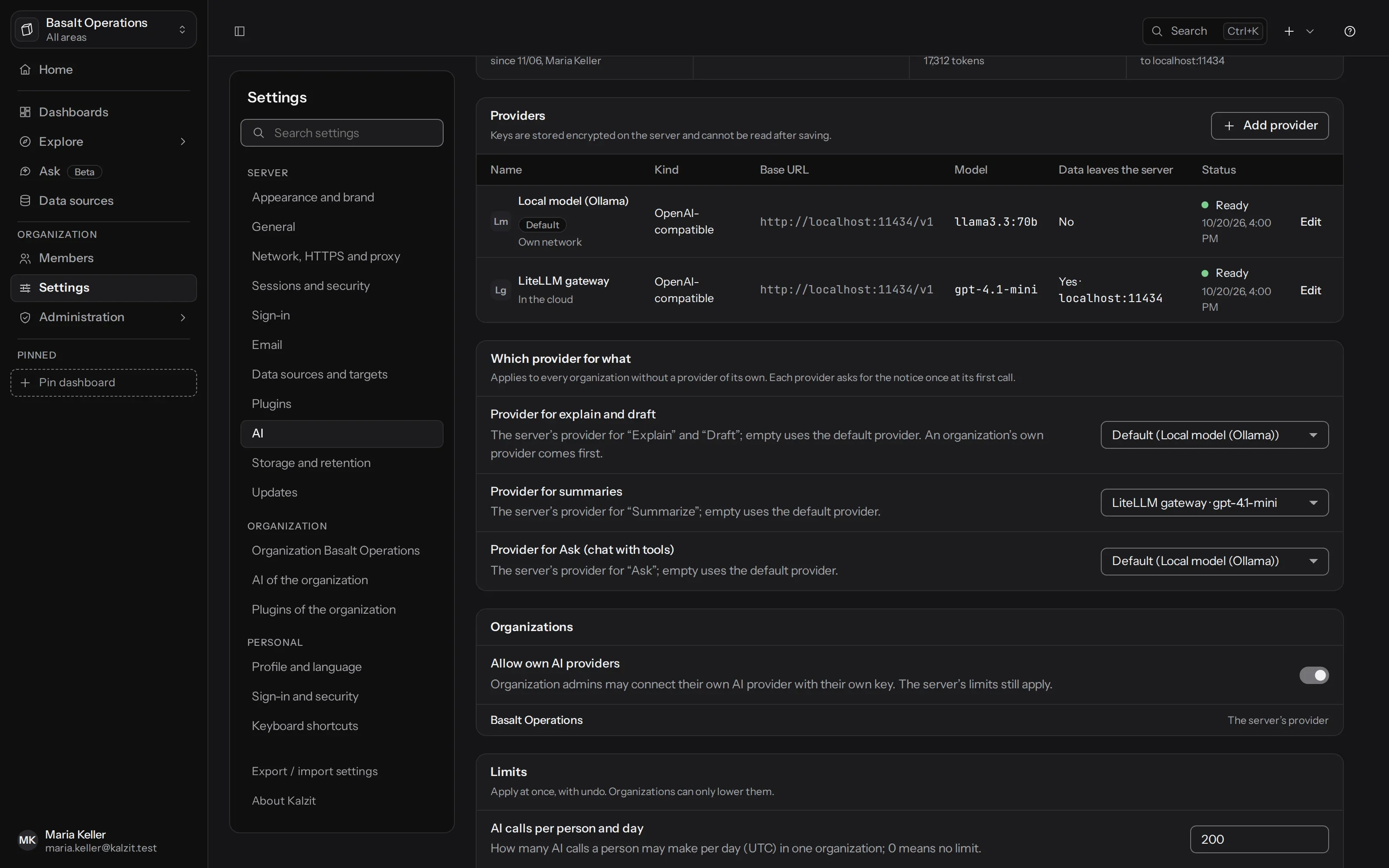
Keys are stored encrypted and never shown again. Provider addresses follow the same target rules as data sources (private networks and localhost are allowed); Kalzit itself is never a target.
Limits
| Setting | Default | What |
|---|---|---|
| AI calls per user and day | 200 | all AI calls of one person in one organization (UTC days) |
| AI tokens per user and day | 200,000 | input and answer together |
| AI tokens per organization and month | 20,000,000 | then AI is refused there until the month ends |
| Rows sent to the model | 200 | rows, documents or nodes of one result; more are cut with a note |
| AI calls at once | 8 / 4 per organization / 2 per user | further calls are refused until one ends |
| AI call time limit | 120 s | one call, including retries and the streamed answer |
0 means no limit for the daily and monthly ones. When a limit is used up, the AI buttons stay visible but are disabled, and say why.
AI of the organization
Settings > AI of the organization (KI der Organisation), for organization admins:
- AI in this organization (KI in dieser Organisation) turns AI off for the members, even while the server has it on.
- A provider of its own with the organization’s own key, when the server allows it (Allow own AI providers). It is used for the members instead of the server’s.
- Lower limits than the server’s (an organization can only lower them) and a shorter chat retention.
- Usage per member, and What AI may read (Was die KI lesen darf): every data source with whether AI may read it.
What AI may read of a data source
On a data source’s page, the AI part (KI) appears while AI is on:
- AI may read (KI darf lesen), off by default. Off, AI never sees the source: explain and draft send only the query text you typed, and summaries of its results are refused. On, its schema (tables, fields, types) goes along with explain and draft, and its results, cut to the row limit, with summaries.
- Excluded fields (Felder ausnehmen): names or dotted paths (
kunden.email,iban) whose values the server replaces with[excluded]before anything is sent; the model sees only the name. Excluding works by name: a field renamed or computed in a query (email AS kontakt) is not covered, so in Ask a query or a panel that names an excluded field is not run at all, nor a panel whose steps read one. Values that serve as the id of a graph node or edge, or as a document’s_id, are not replaced. Data that must never reach a provider belongs in a source that stays closed. - For HTTP JSON and plugin sources the part warns that the source sends requests outward: there the query decides where a request goes and what it carries, so a query written by the AI could carry data from the chat outward. Ask therefore runs only the stored queries of panels on such a source, never a query of its own.
- Open a database to AI only if it has no extensions that reach the network or files (such as
dblinkor pgsql-http): the assistant’s queries run with the source’s login.
Only people who may edit the data source can change this, and every change is audited. The data source list marks opened sources with AI may read.
Before the first call
The first time you use AI with a provider, Kalzit shows Before you use AI (Bevor du KI nutzt): what the function sends and to which host, that answers can be wrong, what never leaves the server (passwords, connection settings, keys, excluded values, closed sources, data you may not see) and the administrators’ own paragraph. Got it (Verstanden) is asked once per person and provider; a new provider asks again.
Explain and draft in Explore
Above the query editor:
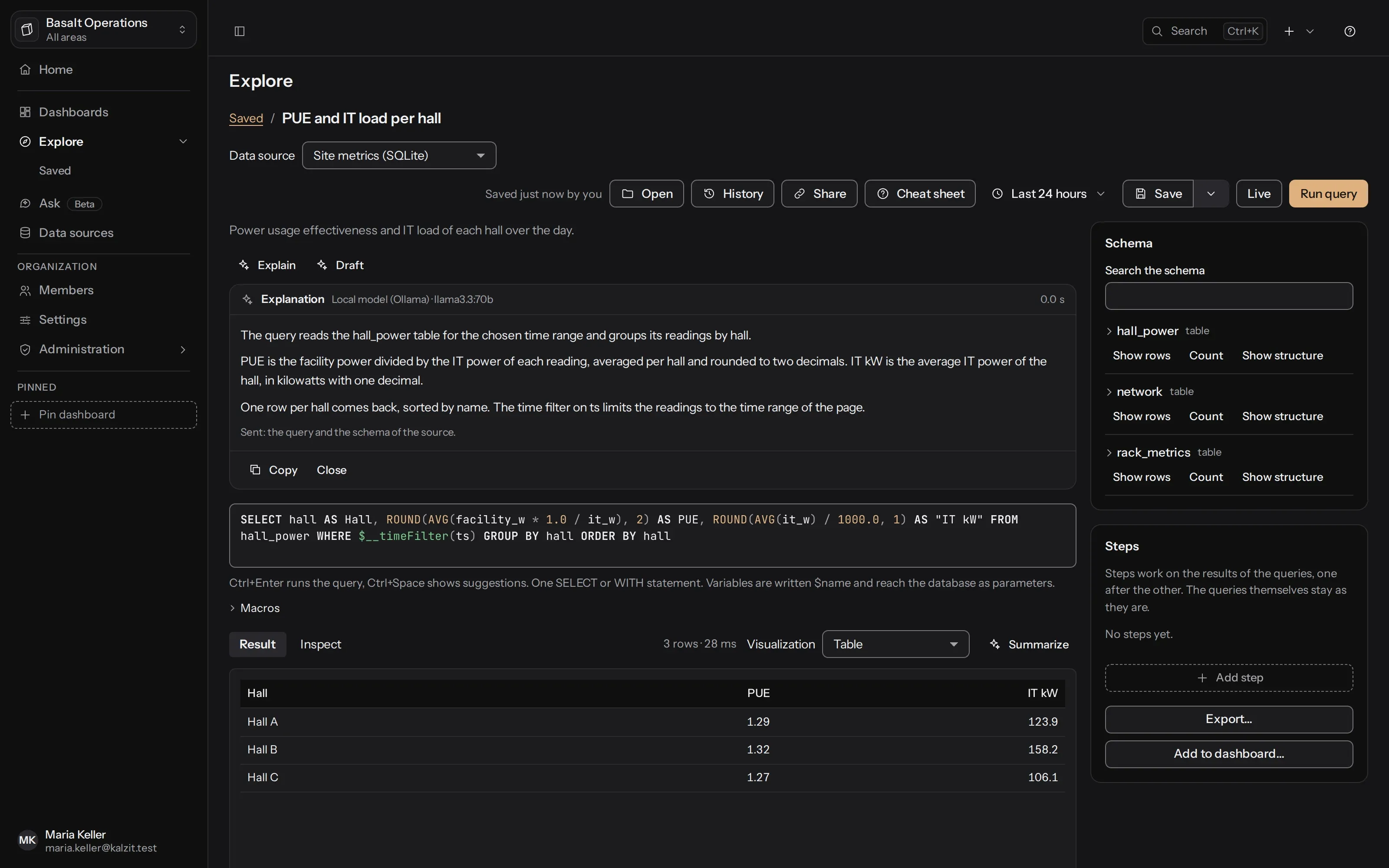
- Explain (Erklären) explains the query in the editor. The answer streams in; Stop (Anhalten, or Escape) ends it, Copy (Kopieren) copies it. The line under it says whether the schema went along.
- Draft (Entwerfen) opens a field “What should the query return?” (Was soll die Abfrage liefern?); Write draft (Entwurf schreiben) asks for a query in the source’s language (SQL, PromQL, Cypher, GSQL, a MongoDB pipeline or a Lucene query). The draft is never run: Apply (Übernehmen) puts it into the editor, where Ctrl+Z takes it back, and Run query checks it like every query, so a draft that would write is refused. Discard (Verwerfen) drops it.
While the provider is thinking the card says so, and after two seconds that it takes longer. A failed call says why and offers Try again; your query stays unchanged.
Summarize
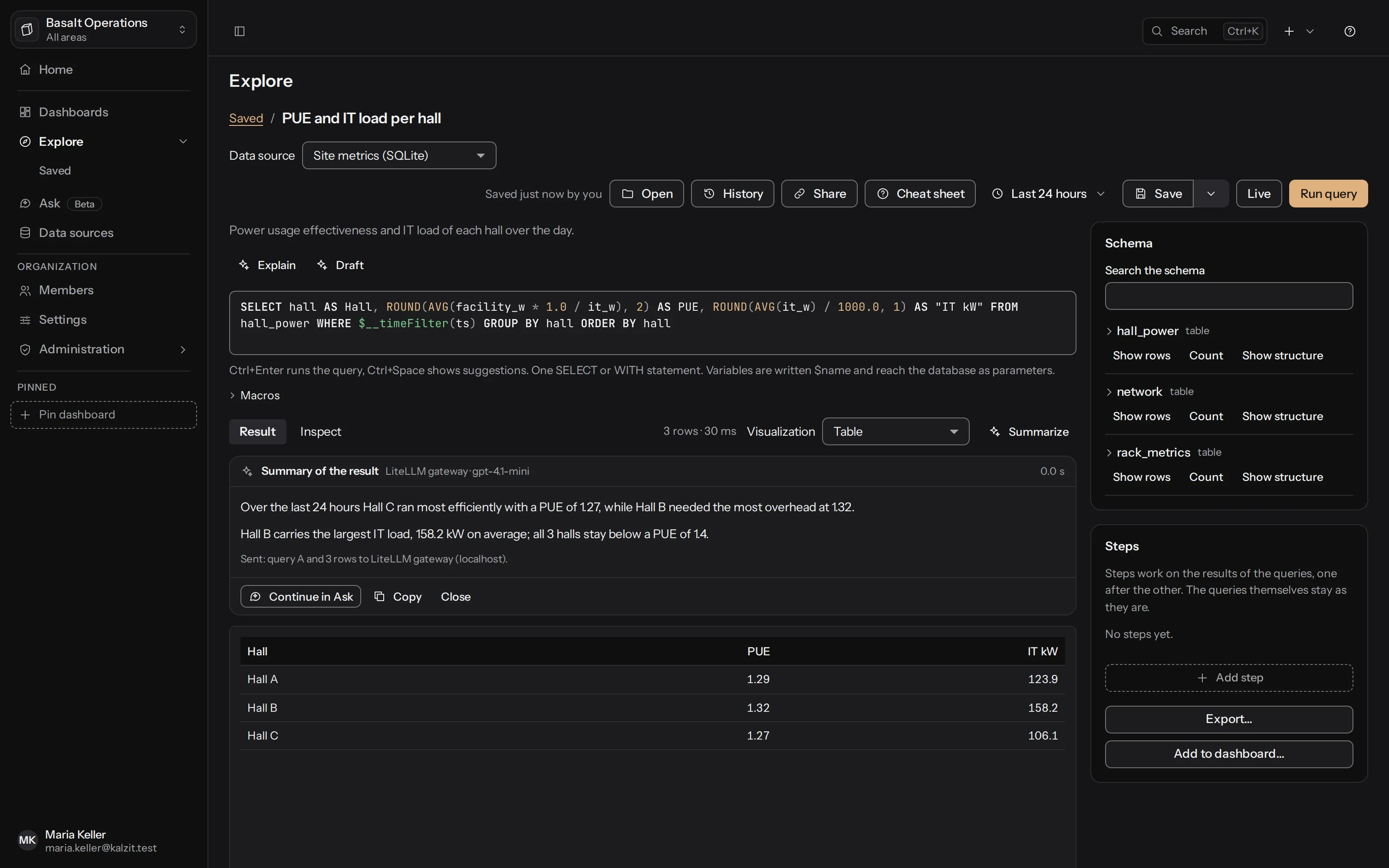
- In Explore, Summarize (Zusammenfassen) next to the visualization runs the query again on the server, as you, and summarizes its result.
- On a dashboard, Summarize in a panel’s menu summarizes what the saved panel shows, with its title, its queries and the dashboard’s variables. Viewers can summarize the panels they can see.
Both need every data source involved to be opened to AI; otherwise the button is disabled (Explore) or the summary says which source AI may not read. The note under a summary says what was sent: the queries, how many rows, whether the result was cut to the row limit and how many excluded values were left out.
Ask (Fragen)
Ask (Fragen, marked Beta) in the navigation is a chat about your data. It appears only while AI is on and a provider is connected. Ask a question in plain words; the assistant works it out with tools, each with your rights and only reading:
- it looks up the data sources you may read and reads the schema of those open to AI,
- it runs read-only queries on them (free queries need the right to query the source, as in Explore; a writing query is refused by the server; on HTTP JSON and plugin sources it runs none of its own, only panels),
- it finds the panels of dashboards you may read and runs their saved queries, so viewers can ask about what their dashboards show,
- it proposes a query you can open in Explore, where you check it and save it as a panel.
Every step appears in the answer as it happens: what the assistant did, on which source, the query (read-only) and the result in its own shape (a table, documents, a graph), cut to the row limit with excluded values replaced. Open in Explore (In Explore öffnen) opens a query in Explore without running it; Copy copies it. Stop (Abbrechen, or Escape) ends an answer; what arrived is kept. The answer ends with the tokens it used. At most 10 tool calls run per answer (Settings > AI); after that the assistant answers with what it has.
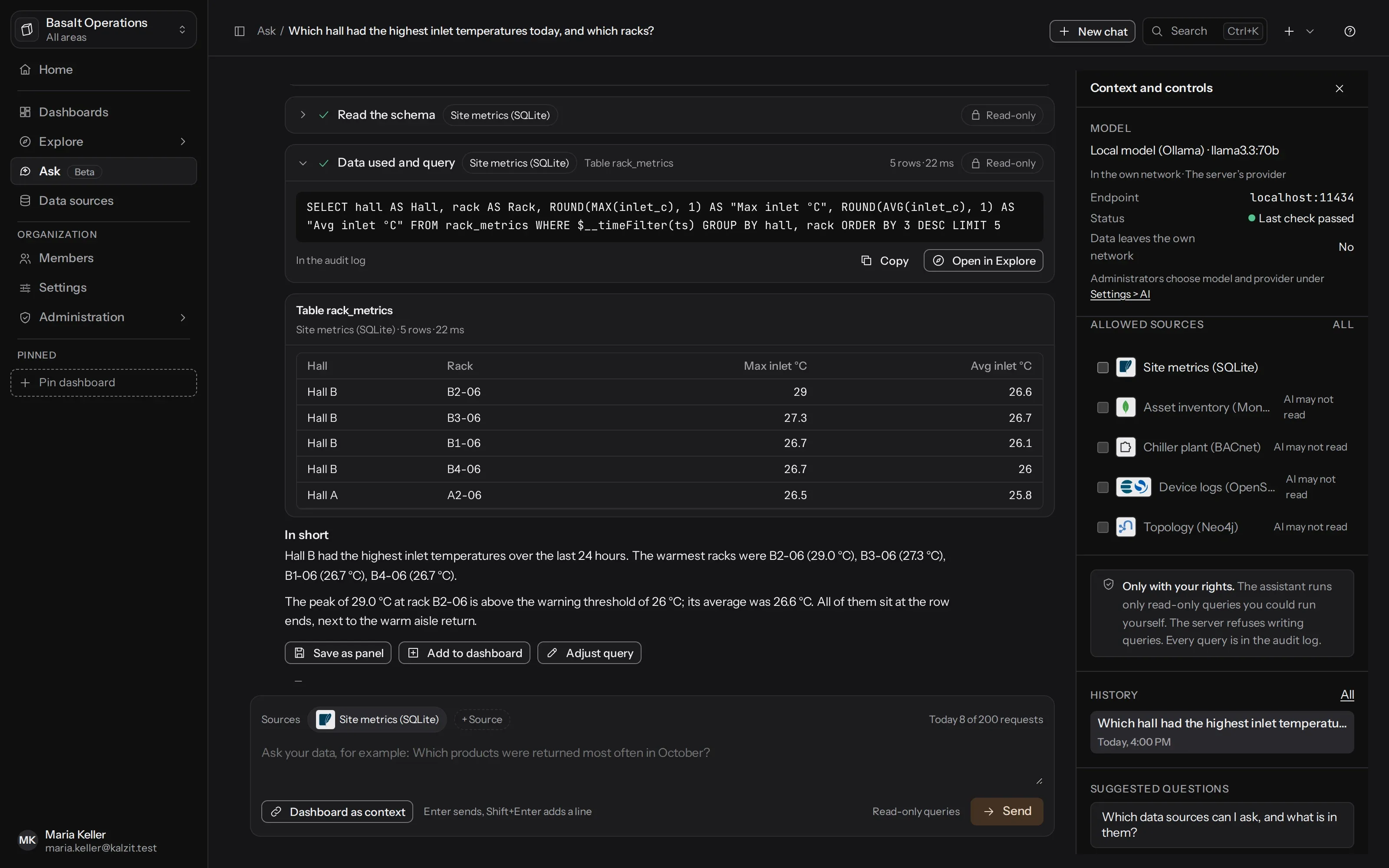
Sources in the composer and Allowed sources (Erlaubte Quellen) in the side pane choose which sources the assistant may use; none chosen means all sources open to AI. Sources AI may not read appear greyed out with “AI may not read”. The side pane also shows the provider and where data goes, your requests today, your recent chats and a few suggested questions.
Dashboard as context (Dashboard als Kontext) in the composer, or Open in Ask (In Fragen öffnen) in a panel’s menu, asks about one dashboard: its title and panels go along, and the assistant can run its panels, steps included. After a summary, Continue in Ask (In Fragen weiterfragen) starts a chat about it. Under an answer, Save as panel (Als Panel speichern) opens its query in Explore with the save dialog, Add to dashboard (Zum Dashboard hinzufügen) puts it on a dashboard (both dialogs show the whole query once more, read-only, before you save), and Adjust query (Abfrage anpassen) opens it in Explore; a result over time switches between Table and Time series. The side pane names the provider that answers in Ask (a provider per function), its endpoint, whether it passed its last test, and whether data leaves your network (as set on the provider, or judged from its address).
Chats are yours alone; nobody else can read them, administrators included. Ask > History (Verlauf) lists them with the days until they are deleted: 30 days after their last message by default, shorter if your organization chose so. Delete one chat, the chosen ones or all of them at any time. A result of a source you may no longer read, or that was closed to AI since, is no longer shown in a stored chat and not sent to the model again. Stored results follow the source’s AI rules as they are now: a field excluded later is replaced in them too, and a lower row limit cuts them. When an answer’s results show less than the model saw, its words are withheld as well, with the note “Answer withheld because access to its data changed”, and are not sent to the model again; so are the words of every later answer in that chat.
Every tool call is in the audit log with the source or dashboard, the query and the number of rows, never with result data, your question or the answer.
Prompt safety
Results, schemas and what you type go to the model as marked data, never as instructions: text in a result that tries to steer the model (“ignore all rules”) is not followed. Answers are shown as text; Kalzit never runs what a model writes, follows its links or changes anything because of it.